Sunday, June 13, 2021

GIT Commands

Git is Open Source Repository for source control. This will be commonly used in IT industry for code checkin and checkout. We will use gitbash to setup git in local repository. Git can be used as server and local respository. Sometime git will be used as local respository. In server bitbucket will be used as central repository. 

In this post we can go through all git commands useful for day to day activities.

#to clone the repository from bitbucket 
git clone "clone link"
To Establish the connection between respository and local systems we need either ssh keys or http access tokens. First we can setup ssh keys then setup http token
#to setup keys firsr we need generate keys
ssh-keygen -t rsa -b 4096 -C "mail id"
Get the public key and configure in bitbucket under my account --> ssh keys and upload the ssh public key Then Open the but bucket respository and select ssh and copy the link to clone from local system
#to clone the repository from bitbucket using ssh connection
git clone ssh://git@bitbucketserver.com/repo/reponame.git
Once Cloned you can check status using the git status command
#to check the status of local system
git status
#the above command will show the the current state of local repository
Once Cloned you can create your feature branch using git branch command
#to create feature branch after cloning
git checkout feature/mybranch
#the above command will a branch in local repository
you can place your modified files in the local path and again check status
#check status of local system
git status
#now it will show untracked files:  the files you modified
use git add command to add the files
#to add files to to git local branch
git add filename
#This will add files to git local repository. We can also use . symbol to add all untracked files
git add .
To save this untracked files in local we use git commit
#to save files to repository
git commit -m "adding the modified file"
# -m will be used for comment to understand why we are adding or modifying the files
To push the files to server we can use git push
#to push files to repository
git push 
Similarly we can use https connection pull or push the files to repository
#to check the current config
git config -l 
Once config verified, we can setup credentails in local to connect git. Please note that we need to have atleast developer access to the respective respository to perform all the activities
#to check the credetials and config required in local system
git config --global credential.helper manager
git config --global user.email "email id"
git config --global user.name "user name"
git config --global core.autoclrf false
git config --global http.sslverify false
In Local system go to control panel --> Windows Credentials -->Add generic credentials. Add bit bucket https site url git:bitbucketurl Once above setings completed in local, then login to bit bucket --> manage accounts --> HTTP access tokens -->create token Save this token for future purpose
#Open git bash in local and clone the repository
git clone https://login@bitbucketurl/scm/repo/reponame.git
To Create new branch
#Below command will create new branch gittest. 
git branch gittest
To check the created branch
#Below command will list all braches 
git branch -a
To push the changes from local to remote branch. we need to following in sequence
#Below command push the local changes
git add filename
git commit -m "reason for adding"
git push -u origin localbranchname
To change identity used for the commit.
#Below command will change identity for the commit
git branch -amend --reset-author
To push the change to upstream if there is no upstream
#Below command will push changes to upstream
git push --set-upstream origin feature/branchname

Saturday, May 29, 2021

Informatica Power Center Meta Data tables details and queries

 Informatica saves the Data in three levels


1) PCD Level :  These are under ISP_PCD Schema which has high level Information. This contains domain level information


2) Repository Level :  These are reposiotry level. This is the repository schema.


3)  Object Level : This permission or attributes related specific object like Workflow, Folder, Session level etc


Domain Level tables

------------------------------

ISP_RUN_LOG : It contains log details all workflows in a domain.


PO_IDOBJ: Provide the individual login details at domain level


PO_OSPROFILE: Os profile details


PO_USERINFO : gets user infromation


Repository level tables:

-------------------------------------


REP_SUBJECT : Folders names (OPB_SUBJECT)


REP_WFLOW_RUN : Gives information about workflow run details


REP_SESS_LOG: Provide the run stats of worklfow and sessions. Using this table we can check start time, end time, succesful_row,actual_rows.


REP_DEPLOY_GROUP :  Gives the information of Deployment groups.


REP_TASK_INST_RUN :  Gives the no of times the task runs for workflows.


REP_TASK_INST:  Gives the information at task level instance 


REP_SESSION_CNXS : Repository connections


REP_SESS_WIDGET_CNXS :  Transformation level connections. example like lookup connections


Object level tables

-------------------------------------

OPB_TASKGives the information at object level task  instance 


OPB_WFLOW_RUN:Gives the information at object level workflow instance


OPB_SESSION_TASK_LOGGives the information at  session task logs 


OPB_DTL_SWIDG_LOG


OPB_ROLE : Roles in Repository


OPB_REPOSIT_INFO  : Provides the current repository details in informatica


OPB_CNX : Provides the connection details (DB, MQ etc) in a specific repository


OPB_OBJECT_ACCESS :  Gives details about each object access details


OPB_SUBJECT :  Folder details


OPB_USER_GROUP :  Specifies user belong to how many groups


OPB_USER: user details in a repository


OPB_GROUPS :  groups in a repository


OPB_CNX_ATTR : provides the connection attributes like connection string ,username etc


Query to get Sequence Number

------------------------------------------

SELECT DISTINCT OM.mapping_name
	,instance_name
	,attr_value
FROM rep_widget_inst RWI
JOIN opb_mapping OM ON RWI.mapping_id = RWI.mapping_id
JOIN opb_widget_attr OWA ON OWA.widget_id = RWI.widget_id
	AND rwi.widget_type = OWA.widget_type
WHERE RWI.widget_type LIKE 'sequence%'
	AND attr_id = 4


Query to get Mapping Details

----------------------------------------

SELECT DISTINCT CONCAT (
		F.SUBJ_NAME
		,CONCAT (
			.
			,OM.MAPPING_NAME
			)
		) AS Mappinname
FROM OPB_MAPPING OM
JOIN OPB_SUBJECT F ON OM.SUBJECT_ID = F.SUBJ ID
WHERE MAPPING_NAME = 'mpl_test';


All Connection details in a repository
----------------------------------------------------

SELECT CNX SUBTYPE NAME
,C.OBJECT NAME name
,C.CONNECT STRING
,ca.attr_id
,CA.attr value data source
,C.LAST SAVED
,C.USER NAME
FROM OPB CNX C
INNER JOIN OPB MMD CNXG ON C.OBJECT ID = CA.OBJECT ID ON G.CNX OBJECT TYPE = C.OBJECT TYPE
AND G.CNX BJECT SUBTYPE - C.OBJECT SUBTYPE INNER JOIN ISP PCR EIG.OPB CNX ATTR CA
WHERE G.CNX OBJECT TYPE = 73
AND ca.attr id = 11
ORDER BY CNX SUBTYPE NAME
,connect_string
,attr value;


Workflows with connection details

------------------------------------------

SELECT WF.SUBJECT AREA AS FOLDER NAME
	,WF.WORKFLOW NAME AS T.INSTANCE NAME AS SESSION NAME
	,T.TASK TYPE NAME
	,C.CNX NAME AS CONNECTION NAME
	,V.CONNECTION SUBTYPE
	,V.HOST_NAME V.USER NAME
	,C.INSTANCE_NAME
	,C.READER_WRITER_TYPE
	,C.SESS_EXTN_OBJECT_TYPE
FROM REP_TASK_INST T
	,REP_SESS_WIDGET_CNXS C REP_WORKFLOWS WF
	,OPB_MAPPING OM
	,V_IME_CONNECTION V
WHERE T.TASK ID = C.SESSION ID
	AND WF.WORKFLOW ID = T.WORKFLOW ID
	AND C.CNX NAME = V.CONNECTION_NAME

Query to find out verbose details

------------------------------------------

SELECT t.task_id AS session_id
	,t.task_name AS session_name
	,w.workflow_name
	,w.subject_area AS folder_name
	,ca.attr_id AS attr_id
	,ca.attr_value AS attr_value
FROM OPB_TASK T
JOIN opb_cfg_attr ca ON ca.version_number = t.version_number
JOIN rep_task_inst ti ON ti.task_id = t.task_id
JOIN rep_workflow w ON w.workflow_id = t.workflow_id
	AND t.version_number = (
		SELECT max(version_number)
		FROM opb_task t1
		WHERE t1.task_id = t.task_id
		)
	AND ca.attr_value = 4
	AND t.task_type = 68
	AND ca.attr_id = 204;


Friday, May 28, 2021

Copy SQL Server Data to PostgreSQL vice versa using SSIS( SQL Server Integration services) using Free tool Devart Express edition


We can connect PostgresSQL using the Devart Free SQL Edition using SSIS tools(Visual Studio 2019) tools. 


Open Visual Studio and go to Extensions --> Manage Extensions


Its a Free tool to connect using PostgreSQL with basic limited features. But it support creating destination table if not exists.

It will redirect ot their link


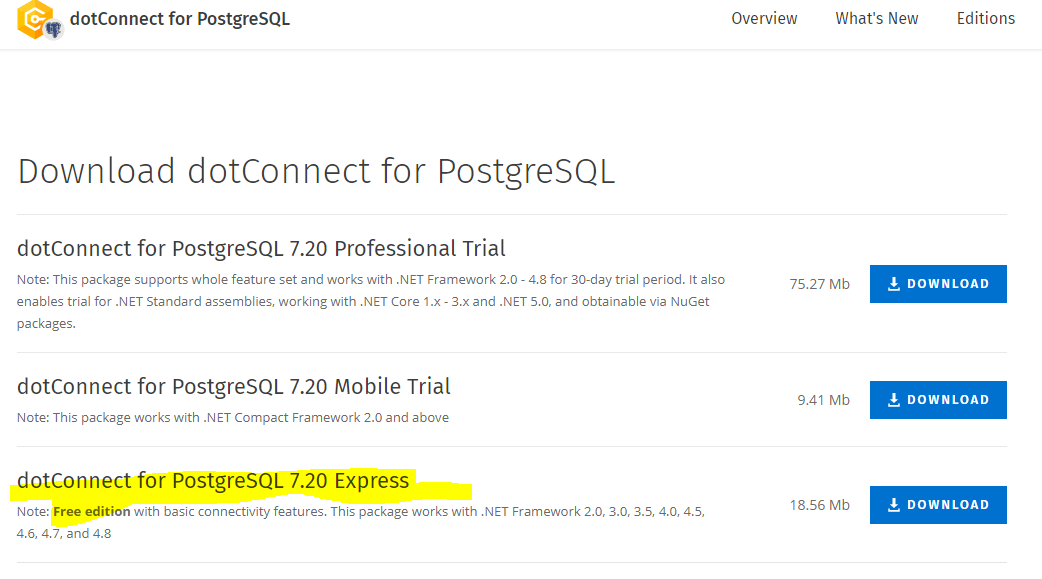
Download the Free version of dotConnect for PostgrSQL 7.20 Express


After installation, you can restart visual studio and open SSIS projects.


Select new connection. Select the dotConnect for PostgreSQL


Provide all the details and select allow saving password so that the password can be used while executing the package.


Save the connection. use the Ado.net Destination.


Map the columns and save. We can use click if we need to create a destination table.


run the SSIS Package. Package running fine.


Tuesday, May 25, 2021

Copy SQL Server Data to PostgreSQL vice versa using SSIS( SQL Server Integration services)

 SQL Server Data tools (Integration services) tools allows the third party Intgeration with SQL Server Integration Project which comes with Visual studion. 


SSIS does not have buit-in Integration with PostgreSQL but allows integration through third party Applications.


Go to Visual studion 2019. In Extensions menu Manage Extensions.


Search with Postgre. 


The first one Npgsql PostgreSQL Integration is free but does not support using SSIS. We can use this only for server explorer which can be intrgrated using Visual Studio .Net.


There are many vendors which provides 30 days trial period. One of them is SSIS PostgreSQL Source. when click on download it will redirect to the page


Download SSIS PowerPack - 30 Day FREE Trial Includes: | ZappySys


After registering you can download and use trial version for a month. This application provides many connector source systems not only PsotgreSQL.


These are the different connector available after installing the software. Postgre is also there, I have highlighted the same.


But I feel it do not have any option to create a table if does not exist. Table must exist in SQL server. 


Their connections are working fine as exptected. I ran one SSIS task to load one sample table it working fine.


Package execution was sucessfully after mapping the columns. But there should have been an option to create destination table based on source table columns this is only one drawback i have seen in this product.


Other Vendor who is supporting free. But they also support basic featres. That will redirect to the page


Highlighted one is free. This option also can be tried.


Monday, May 24, 2021

Configure the Oracle 19c Client with Oracle Wallet Manager or Command Utility


Below are the steps to install oracle 19c client in UNIX server.


1) To ensure successful database,clinet,and grid infrasturctue installation ,set IOCP to available


2) Check you have atleast 5 GB free space so that there will not be any issue during instllation

use the command df -g .


3) Check the ulimit value should be set to unlimited.


4) Check the permission to run the command oslevel -s

It should display the UNIX version


Also the user who is installing oracle should have read  permission to 

/etc/oraInst.loc


5) Go to Oracle site and download the client.Download the highlighted one.


6) After downloading place the file oracle folder that needs to be installed and provide the directoy to 775 permissions or create a directory inside that

mkdir -m 775 Oracle19c

chmod 775 Oracle19c


7) Unzip the copied software using the unzip command

unzip AIX.PPC64_193000_client.zip


8) After unzip the files go to client/response directory

take backup of the file client_install.rsp

Then edit using vi editor. Change the below properties

UNIX_GROUP_NAME -- This is the group of who owns the current folder

INVENTORY_LOCATION -- This oracle invetory location which store the oracle installations version

This path will be in /opt/sw/oracle/app/oracle/oraInventory


ORACLE_HOME -- This is oracle home for the oracle 19c where you have bin directory and other tns files saved here.

Ideally this path will be set to /opt/sw/oracle/product/19.3.0/client/home

ORACLE_BASE -- This is oracle path when login to the server. This is ideally /opt/sw/oracle

oracle.install.client.installType=Runtime


9) Then go to the ORACLE_BASE path which is /opt/sw/oracle

create a temp directory and go to temp run the command umask 022.

This will set the permssions to rw-r-r on the current temp directory

unset ORACLE_HOME

unset ORACLE_BASE


unset ORACLE_SID

unset TNS_ADMIN


9)  After running this go the client path where we have unzipped the files.

/opt/sw/oracle/software/Oracle19c/client

run the command

./runInstaller -silent -responseFile /opt/sw/oracle/software/Oracle19c/client/response/client_install.rsp


10) This will install successfully 


11)  After update the .profile to use the new oracle client.

12) restart the profile using . ./.profile then the installation completed.

13) Change the settings in sqlnet.ora to point the oracle client wallet to create trust between server and client. 


14) Ensure that Oracle Client wallet installed successfully and create the java keystore to create trust between oracle server and client. This can be configured using oracle wallet manager or orapki


15) update the tns entires in the tnsnames.ora file

16) run the comand TNSPING connectionname


18 ) Connect using sqlplus to test connectivity. if it connected succesfully it will show which client and sqlnet.ora file it used to connect to the database.


Saturday, May 22, 2021

How is install SQL Server Integration Services(SSIS) or SSDT tools using Visual Studio 2019


Microsoft stopped proving separate install for SSDT tools. It is now part of Visual studio 2019.


It should be installed using visual studion 2019 package.


Once you have installed visual studio. Using the Visual studio installer SQL server integration services tools can be installed.

Launch Visual Studio installer.


Click on modify and Go to Workloads


Scroll down and select Data Storage and processsing and ensure that you have selected the SQL server Integration services project


select any of the optin install while dowloading or download and install


Once after installation if you open installer again in indivdual components sections you can it istalled.


Same can be seen in the installation details


Friday, May 21, 2021

Rename the files in a folder using the SSIS(SQL Server Integration Services) or SSDT Tools(Visual Studio 2019)

Renaming the files in a folder using SSIS is very easy. We need just two tasks.


1) ForEachLoop Container

2)File System task


These both are available in Control-Flow Task.


First Place For Each Loop Container and then place File System Task. 


Second Create a variables as shown below.


Filename : This variable is used for Dynamically getting the Filename in SSIS For Each Loop container. We need to set some default name (abc.txt) so that it will create failure in build.


FilePath : This variable is static. You can hardcode the variable path. Or You can create connection and get the File path. Here I created variable and Kept Some Local Path.


SourceFileNameThis variable is Dynamic. Use the expression to use the Filename variable so that when ever you get value from For each Loop it will set to SourceFileName so that you will not get error. 

You cannot use the same variable for setting the filename and getting the filename.


DestFileName : This variable is used for Dynamically setting the filename. We can write expression how to rename the files.

Suppose I have image files from different source like whatupp, mails and vedios but i need to sort all based on the timestamp but the inital name was different. So I can use this replace the name of file so that all will be in sorted manner. 


After setting the variables we need to set the For Loop container values to pickup dynamically 

in folder.

Double click on For Each Loop and Go to the Collection tab. Select Enumerator as For Each File Enumerator.


In Expressions set Directory for the File Path Variabe

FileNameRetieval will get Filename and sets to Filename variable.


In Variable Mappings, Use the the same sequnce to assign the variables using the same order

Index starts from Zero.


Click Ok. Edit the File System task inside the For each loop container.


Set OverwriteDestination to False so that it will not overwrite the files if it matches.


For Destination and Source connection set the Paramaeters IsDestinationPathVarible and 

IsSourcePathVariable to True. By default it will be false. Here we have parameterised to use dynamically so we need to set to "True"


SourceVariable : This variable is used for Dynamically getting the Filename in SSIS For Each Loop container. We have wrtitten this expresssion in variable definition. So it will be same and Filename and can be accessed across SSIS Package.


DestinationVariableThis variable is Dynamic. We have set the same to replace "IMG"

name to "VID".


Also do not use the expression to use variable which has been set in For Each Loop Container to set in File System Task.

Error at File System Task: Failed to lock variable "for read access with error 0xC0010001 "The variable cannot be found. This occurs when an attempt is made to retrieve a variable from the Variables collection on a container during execution of the package, and the variable is not there. The variable name may have changed or the variable is not being created.".

Ex:

----------

Before running the Task. You can see there are different file types but I want to keep same name format. I can do that using this simple task.


After Executing the SSIS Task.


We can clearly see that after running the task file names got changed.


Friday, March 19, 2021

Nose Test using Python

 Nose test is one of the unit testing tool in python to run the unit tests.


Below code show who to run the test for circle with various test case. 

# Import the Circle class from the circle module using the expression from proj.circle import Circle
# Import assert_raises from nose.tools using the expression from nose.tools import assert_raises, eq_.
# Use eq_ method for assert, and to check. Don't use assert statement.
from proj.circle import Circle
from nose.tools import assert_raises, eq_


# Define a nose test class 'TestingCircleCreation'
class TestingCircleCreation:
# Define a nose test method 'test_creating_circle_with_numeric_radius', which creates a circle with radius 2.5, and check if its radius value is 2.5 using eq_ method.
def test_creating_circle_with_numeric_radius(self):
c1 = Circle(2.5)
r = c1.radius
eq_(r,2.5)


# Define a nose test method 'test_creating_circle_with_negative_radius', which checks if the ValueError exception is raised with the error message "radius must be between 0 and 1000 inclusive" using eq_ method, while creating a circle of radius -2.5.
# Hint: Use assert_raises and with.
def test_creating_circle_with_negative_radius(self):
#eq_()
with assert_raises(ValueError) as e:
c = Circle(-2.5)
eq_(str(e.exception), "radius must be between 0 and 1000 inclusive")


# Define a nose test method 'test_creating_circle_with_greaterthan_radius', which checks if the ValueError exception is raised with the error message "radius must be between 0 and 1000 inclusive" using eq_ method, while creating circle of radius 1000.1 .
# Hint: Use assert_raises and with
def test_creating_circle_with_greaterthan_radius(self):
#eq_()
with assert_raises(ValueError) as e:
c = Circle(1000.1)
eq_(str(e.exception), "radius must be between 0 and 1000 inclusive")


# Define a nose test method 'test_creating_circle_with_nonnumeric_radius', which checks if the TypeError exception is raised with the error message "radius must be a number" using eq_ method, while creating circle of radius 'hello' .
# Hint: Use assert_raises and with.
def test_creating_circle_with_nonnumeric_radius(self):
with assert_raises(TypeError) as e:
c=Circle("hello")
eq_(str(e.exception), "radius must be a number")


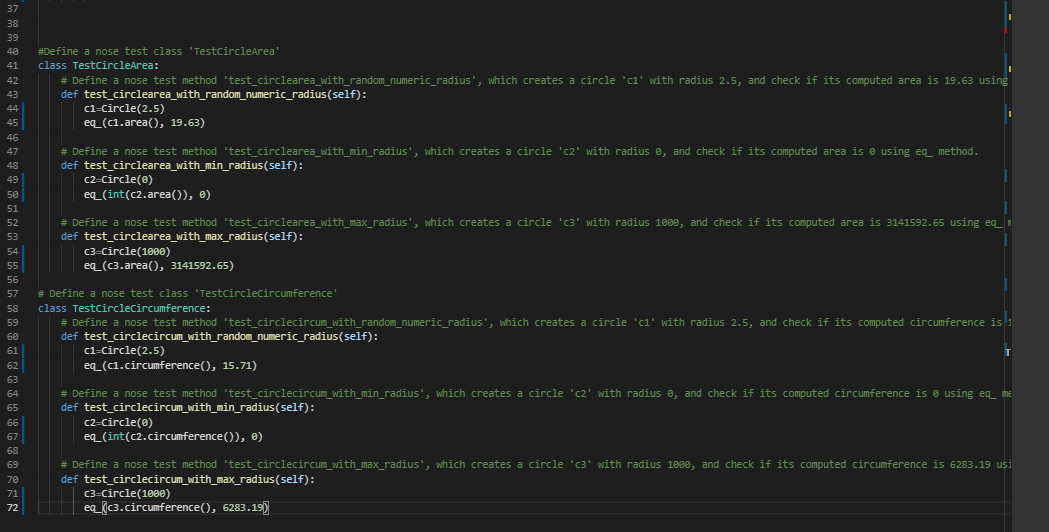
#Define a nose test class 'TestCircleArea'
class TestCircleArea:
# Define a nose test method 'test_circlearea_with_random_numeric_radius', which creates a circle 'c1' with radius 2.5, and check if its computed area is 19.63 using eq_ method.
def test_circlearea_with_random_numeric_radius(self):
c1=Circle(2.5)
eq_(c1.area(), 19.63)


# Define a nose test method 'test_circlearea_with_min_radius', which creates a circle 'c2' with radius 0, and check if its computed area is 0 using eq_ method.
def test_circlearea_with_min_radius(self):
c2=Circle(0)
eq_(int(c2.area()), 0)


# Define a nose test method 'test_circlearea_with_max_radius', which creates a circle 'c3' with radius 1000, and check if its computed area is 3141592.65 using eq_ method.
def test_circlearea_with_max_radius(self):
c3=Circle(1000)
eq_(c3.area(), 3141592.65)


# Define a nose test class 'TestCircleCircumference'
class TestCircleCircumference:
# Define a nose test method 'test_circlecircum_with_random_numeric_radius', which creates a circle 'c1' with radius 2.5, and check if its computed circumference is 15.71 using eq_ method.
def test_circlecircum_with_random_numeric_radius(self):
c1=Circle(2.5)
eq_(c1.circumference(), 15.71)


# Define a nose test method 'test_circlecircum_with_min_radius', which creates a circle 'c2' with radius 0, and check if its computed circumference is 0 using eq_ method.
def test_circlecircum_with_min_radius(self):
c2=Circle(0)
eq_(int(c2.circumference()), 0)


# Define a nose test method 'test_circlecircum_with_max_radius', which creates a circle 'c3' with radius 1000, and check if its computed circumference is 6283.19 using eq_ method.
def test_circlecircum_with_max_radius(self):
c3=Circle(1000)
eq_(c3.circumference(), 6283.19)